Stream From Phone Without an App: iOS & Android Guide
You can stream from your phone without an app, on iOS or Android, right now. Open a browser, scan a QR code, you're live. Modern phones expose the camera directly to websites through standard APIs, so there's no app store step at all. That's handy if you just want to test an idea or share a moment without creating an account on yet another platform.
LiveSnap.tv uses the WebRTC protocol to send real-time video straight through your mobile browser, no plugins, no downloads. Phone camera to browser stream, same core mechanics whether you're on iOS or Android.
Why Browser-Based Streaming Works on Mobile
Safari and Chrome both support real-time communication natively now, which means your phone already has what it needs for a mobile browser live stream. The old way meant installing proprietary software or wrestling with screen-mirroring tools that added lag and chewed through battery. Browsers handle media capture themselves these days. That's the whole reason cross-platform live streaming finally works for ordinary people instead of just broadcasters with dedicated gear.
It also sidesteps the security questions that come with giving a random app deep system permissions you'll only use once.
How to Stream from iPhone Using Safari
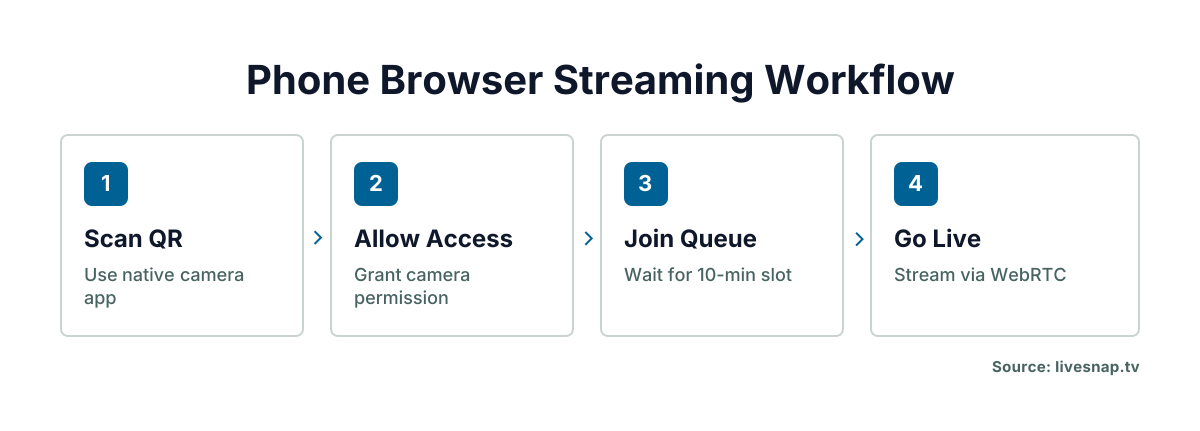
Apple is strict about camera access, but Safari deals with it predictably when you start an iOS live stream with no app installed. The first time you visit a broadcasting page, iOS shows a permission prompt asking for camera and microphone access. Tap Allow and you're through. If you denied it before, you'll need to reset it under Settings > Safari > Camera.
Granting Camera Permissions in iOS
Safari remembers your choice per site, so if a stream won't start, it's usually because you denied access on an earlier visit by accident. Check the site settings inside Safari and confirm the camera and microphone toggles are on before you try again. The system is protecting your privacy by default; it just needs your explicit yes.
Scanning QR Codes with the Native Camera
The native iOS Camera app scans QR codes on its own, no third-party scanner needed to kick off a browser-based stream. Point your rear camera at the broadcast code and a yellow banner pops up at the top of the viewfinder. Tap it, and Safari opens straight to the streaming page, ready to go. 📸
This QR code scan-to-broadcast workflow means you never type a URL or go hunting through browser history for the platform.
Android Live Stream No App via Chrome
Chrome on Android gives you more granular control over permissions, which helps if you're troubleshooting an Android stream with no app installed. The browser manages camera access through its own site settings menu, separate from the system-level toggles. So there are two places to check if your stream won't start.
Managing Site Settings for Camera Access
Open Chrome's three-dot menu, go to Settings > Site Settings > Camera, and see which sites currently have access to your hardware. You can reset permissions for one site without touching the rest of your browsing data or saved passwords. That targeted reset often fixes it when Chrome has quietly blocked media capture after an earlier failed attempt.
Differences Across Android Manufacturers
Samsung, Xiaomi and others sometimes layer their own privacy controls on top of standard Chrome behavior. If your phone runs a custom security suite or battery optimizer, you may need to dig past the normal Android settings. These vendor tweaks are the most common reason a setup that looks correct still won't touch the camera.
If Chrome's settings look fine and it still doesn't work, check your phone maker's own privacy dashboard.
Cross-Platform Compatibility and Browser Limits
Knowing how browsers handle video protocols differently sets your expectations for quality and lag across cross-platform live streaming. Safari and Chrome both implement WebRTC, just not identically, and that affects codec choice and connection stability depending on the network. Doesn't matter much for casual viewing, but it shows up once you start comparing devices side by side.
Safari vs Chrome WebRTC Support
Safari tends to favor H.264 for compatibility. Chrome often negotiates VP8 or VP9 instead, depending on the server and the hardware doing the decoding. So your stream can look a little sharper on one than the other even at the same bitrate. The WebRTC technology behind browser streaming keeps converging, but the gaps haven't closed yet in 2026.
Handling Orientation and Aspect Ratio
Lock your phone's orientation before you go live. Otherwise the layout shifts mid-stream and the player on the viewer's end breaks. Vertical video fills a phone screen naturally; horizontal works better if you expect people watching on a desktop. Pick one on purpose, because rotating mid-stream creates a jarring cut that nobody enjoys watching.
Browser streaming also doesn't give you the scene composition or multi-camera switching that dedicated broadcasting apps have.
Network Requirements for Stable Mobile Broadcasts
Streaming from a browser depends on upload bandwidth, not download speed, and that's where asymmetric mobile data plans become the bottleneck. Most speed tests only report download numbers, but your stream quality rides entirely on how fast your connection pushes video upstream. A stable 3 Mbps upload handles 720p comfortably. Drop below 1.5 Mbps and you'll see aggressive compression artifacts.
Wi-Fi tends to give more consistent upload performance than cellular, especially in crowded areas where congestion causes packet loss. Test your upload speed specifically before going live, since advertised plan speeds rarely match what you actually get. Broadcasters get a timed 10-minute slot in a public queue with no account registration required, so you can check your connection quality with nothing at stake.
Going Live Instantly with LiveSnap.tv
There's no signup barrier for first-time broadcasters who just want to try live video. You can go live without an app by scanning the broadcast QR code and taking the next open slot in the rotation. Try the format first, decide later whether it's worth building a presence there.
The 10-Minute Slot System
Every unregistered broadcaster gets a fixed 10-minute window, so nobody can hog the public queue. The timer starts the moment you go live and cuts the stream automatically when it runs out, keeping the rotation fair for whoever's waiting. It also nudges people toward something focused instead of a rambling, open-ended broadcast.
Building Reputation for Longer Airtime
Registered users build a reputation score from viewer ratings, and a higher score shortens your queue wait and unlocks longer airtime. Good feedback signals your content is worth priority placement and a longer slot next time. Broadcasting without registration gets you in the door immediately, but an account lets that reputation build up into real, tangible broadcasting privileges over time.
The system rewards consistent, good streams, not follower counts or paid promotion.
Common Issues When Streaming Without Apps
Browsers come with quirks that native apps usually hide from you, so it helps to know the failure modes before your first broadcast. Microphones often start muted by default as a privacy precaution, so you'll need to unmute manually before viewers can hear you. Background tab throttling can also kill your stream if you switch away to check a notification.
Battery optimization on both iOS and Android can shut down background processes to save power, and that ends your stream mid-slot without warning. Turn off battery saver and keep the broadcasting tab in the foreground for the whole session. None of this is a platform bug. It's just what comes with streaming without downloading software, and once you know why it happens, it's easy to work around.
Frequently Asked Questions
Can I stream live video from my phone browser without installing anything?
Yes, modern iOS and Android browsers support WebRTC natively, allowing direct camera access through websites. You simply scan a QR code or visit the streaming URL to begin broadcasting without app store downloads. This works on Safari for iPhone and Chrome for Android.
Why won't my phone camera work on the streaming site?
Check that you granted camera and microphone permissions when the browser prompted you initially. On iOS, go to Settings > Safari > Camera to reset blocked permissions. On Android, open Chrome Site Settings to verify camera access is enabled for the domain.
What upload speed do I need for stable mobile streaming?
Aim for at least 3 Mbps upload speed for reliable 720p broadcasting from a mobile browser. Lower speeds will work but produce visible compression artifacts and potential buffering. Test your upload specifically, as download speed does not determine stream quality.
How long can I stream without creating an account?
Unregistered broadcasters receive timed 10-minute slots in the public queue rotation. The slot begins when your stream goes live and ends automatically at the limit. Creating an account and earning viewer ratings unlocks longer airtime and shorter queue waits.